Screenshots
Below you will find screenshots of our software products in action. Click on any thumbnail to view the full-size screenshot. These images show the actual user interface of each application, so you can get a clear idea of what to expect before downloading the trial version.
EZ Thumbnail Builder
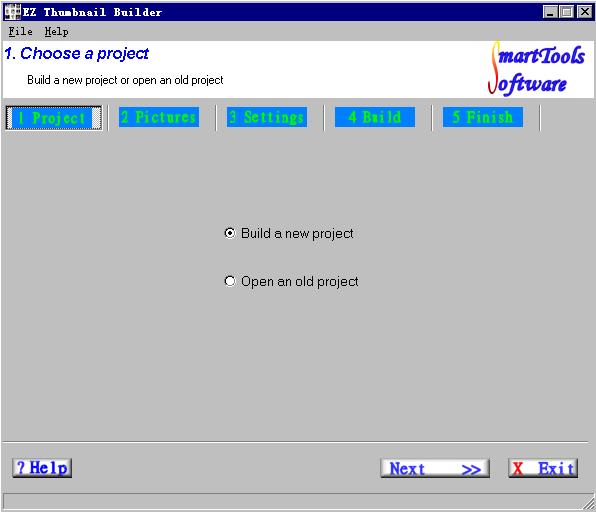
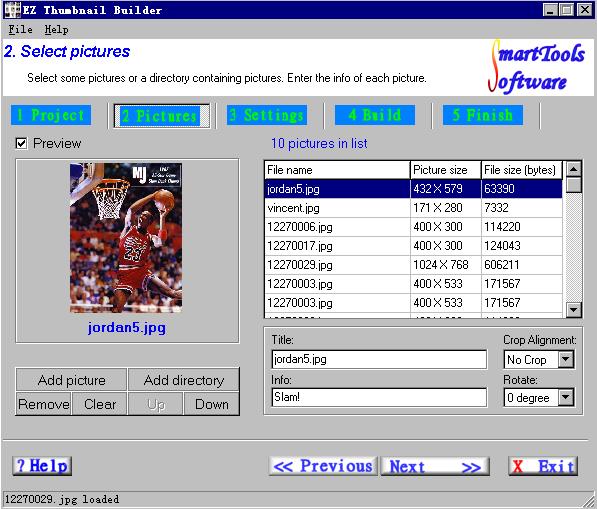
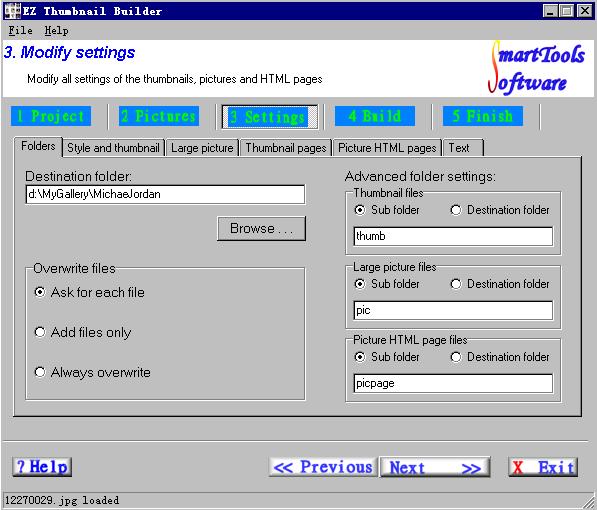
EZ Thumbnail Builder features a clean wizard-style interface that guides you through the process of creating thumbnail galleries. The three screenshots below show the main stages of the workflow: building a new project, adding pictures to your gallery, and modifying the gallery settings before final generation.
The first screenshot demonstrates the project creation wizard where you set up your new gallery. You specify the project name, destination folder, and select the initial template style. The wizard provides helpful descriptions for each option so you always know what each setting does.
The second screenshot shows the image selection stage. Here you add photos and images to your gallery using the file browser. You can add files from multiple folders, preview images before including them, and sort them by name, date, size, or file type. Multi-selection using Ctrl and Shift keys is fully supported for efficient workflow.
The third screenshot reveals the advanced settings panel. Professional users can customize virtually every aspect of their gallery output, including thumbnail dimensions, image quality, HTML template details, page layout parameters, and the naming conventions for generated files. This level of control makes EZ Thumbnail Builder suitable for both casual users and web professionals.
EZ Photo Renamer
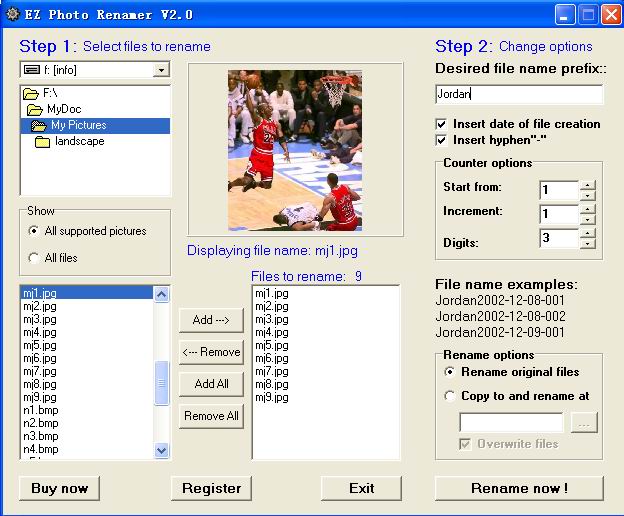
EZ Photo Renamer provides a straightforward interface for batch renaming your digital photo files. The screenshot below shows the main window where you select files and configure renaming options including the name prefix, date insertion, counter settings, and destination folder.
The interface is divided into clear sections: the file list on the left shows all selected photos with their current names, while the options panel on the right lets you configure the new naming pattern. A real-time preview at the bottom shows exactly what the renamed files will look like before you commit to the operation. This approach eliminates guesswork and prevents naming mistakes.
EZ Password Secure
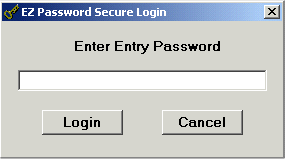
EZ Password Secure organizes your credentials in a familiar tree-view layout. The screenshots below show the main interface with the group tree, the entry editing screen where you add usernames and passwords, and the login dialog that protects your encrypted database from unauthorized access.
The main interface displays your password groups in a collapsible tree on the left side, while the right panel shows the entries belonging to the selected group. You can see usernames, URLs, and descriptions at a glance. The Copy buttons next to each field allow one-click clipboard operations. The shield feature masks passwords with asterisks when others might be watching your screen. The built-in password generator, accessible from the entry editor, creates strong random passwords of customizable length and character composition.


Ready to try our software? Visit the downloads page to get the free trial versions. For more details about each product, see the individual product pages: EZ Thumbnail Builder, EZ Photo Renamer, and EZ Password Secure.